PNG to PDF

Turn PNG files into one PDF in your browser. Nothing is uploaded.

Free, no limit Nothing uploaded No watermark Works on mobile

Drop your PNG files here

Drop as many PNG files as you like. Nothing is uploaded.

Choose files

Screenshots and graphics, in one document

PNG is what a screenshot is, what an exported chart usually is, and what a logo with a transparent background always is. Turning a stack of them into one PDF is the ordinary way to send a set of screens to somebody who should not have to open eleven files.

One thing has to happen on the way, and it is worth knowing about. A PDF page is opaque, so transparency cannot survive: anything transparent in the PNG is placed on white, exactly as it would look printed. And because a PDF cannot store a PNG the way it stores a JPEG, the picture is re-encoded at a high quality before it goes in.

For a screenshot of an interface that is invisible. For a screenshot of very small text it is worth checking the result, and if the letters look soft, take the screenshot at a larger size rather than accepting the fuzz.

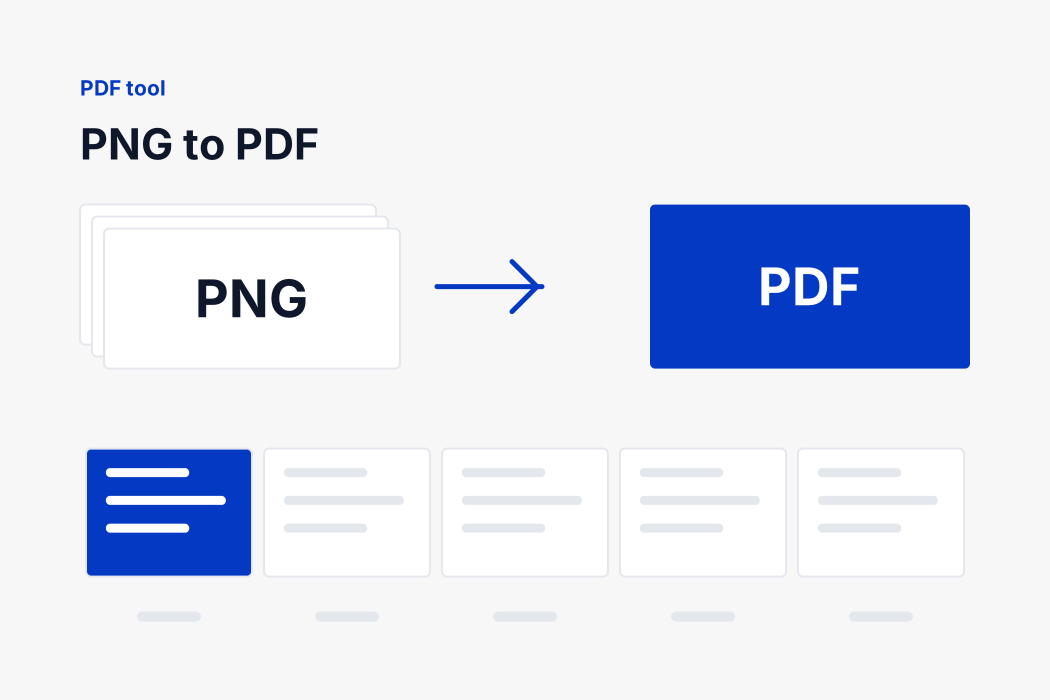
PNG screenshots being combined into a single PDF document
How it works

Three steps, no upload

Your browser reads the images and writes the document. There is no queue and no waiting.

1

Add your images

Drop in as many PNG files as you like, or pick them from your device.

2

Put them in order

Each row is numbered and has arrows. The order you see is the order the pages will be in.

3

Build the PDF

Choose the page size and margin, then download one document. Nothing was uploaded to get it.

How an image becomes a page

A PDF can carry a JPEG stream as it is, but not a PNG. PNG uses a different compression that PDF readers do not implement, so a PNG has to become something the format can hold.

Your browser decodes the PNG, draws it onto a canvas over white, and encodes that as a high quality JPEG, which is then placed in the document. One re-encoding, at a setting where you would struggle to see it, and no further loss afterwards.

The page itself is described in points, the unit a PDF measures in, at seventy two to the inch. An A4 page is 595 by 842 of them. Your image is scaled until one edge meets the margin, centred, and drawn. Its proportions are never changed, because a stretched photograph of a document is worse than a small one.

The last part of the file is a table of byte offsets, one for every object in it. That table is why so many hand written PDFs fail to open: if a single offset is wrong the reader gives up and shows nothing. Ours is checked against the finished file on every build.

Choosing the page size

SettingSizeWhen to use it
A4210 x 297 mmThe default nearly everywhere outside North America, and what almost every upload form expects.
Letter8.5 x 11 inThe standard in the United States and Canada. Slightly wider and shorter than A4.
Legal8.5 x 14 inLonger paper for contracts and legal filings in North America.
A5148 x 210 mmHalf of A4. Useful for booklets and for keeping a document small on screen.
Fit the page to the imageWhatever your picture isNo scaling and no white border at all. Right for screenshots that will only be read on a screen.

Orientation is set to match each image by default, so a landscape photograph gets a landscape page and a portrait one gets a portrait page, in the same document. Forcing one or the other is there for when the pages have to match, such as a form that will be printed.

The margin is white space between the picture and the edge of the paper. None fills the sheet completely, which suits scanned pages. Normal leaves a border that looks right when printed. If in doubt, leave it alone.

Why none of this leaves your device

Think about what people actually turn into PDFs. Passports and visas. Bank statements for a loan application. Degree certificates. Rental agreements with a signature on them. Medical letters. Almost every one of those is a document you would not hand to a stranger.

An online converter that works the ordinary way asks you to do exactly that. Your file goes to a server you know nothing about, in a country you were not told, and is processed and stored for some period described in a policy nobody reads. Most of those services are honest. You have no way of checking which ones.

This page removes the question. The conversion runs in your browser, using the image decoder your browser already has and a PDF writer that is part of the page. No file is transmitted, so there is nothing on our side to store, scan, sell or lose. You can disconnect from the internet after the page loads and it will still work, which is the simplest proof there is.

What this suits

  • Screenshot walkthroughs, where ten images in order explain something no paragraph can.
  • Exported charts and diagrams going into a report as a standalone document.
  • Design proofs sent to somebody who does not have the design tool installed.
  • Scanned pages saved as PNG, which is what some scanner software does by default.

Transparency, and what happens to it

A transparent background becomes white. That is not a limitation of this page but of the format: PDF pages are sheets of paper, and paper is not see through. If you need the transparency kept, PDF is the wrong destination and the file should stay a PNG.

How this compares with the alternatives

An online converter that uploads

Faster to build and slower to use: your file has to travel to a server, wait its turn, be converted and travel back. On a phone connection a folder of photographs can take longer to upload than the whole job takes here. And the file is then somewhere you cannot see.

The print to PDF option on your computer

Both Windows and macOS can print an image to a PDF, and for a single file that is a perfectly good answer. It becomes awkward at more than one: you cannot easily control the order, each image tends to become its own document, and combining them afterwards needs another tool.

A phone scanner app

Genuinely better when the source is a physical page, because it will straighten the photograph, crop to the paper and lift the contrast. Use one for scanning. Come here when you already have the images and simply need them in a document.

A full editor such as Acrobat

The right tool when you need to edit, sign, redact, merge existing PDFs or fill a form. That is a different job from making one, and it is not what this page claims to do.

If something does not look right

The pages came out in the wrong order

Files are added in the order the browser hands them over, which for a multiple selection is not always the order you clicked. Every row is numbered and has arrows, so set the order before you build rather than after.

There is a white border I did not want

That is the margin. Set it to none, or choose to fit the page to the image, which makes the page exactly the size of the picture and leaves no border at all.

The image looks small on the page

A picture is scaled to fit inside the margins without changing its shape, so a very wide photograph on a portrait page leaves space above and below. Set the orientation to match each image, or fit the page to the image.

My iPhone photos will not open

iPhones save as HEIC, and only Safari can decode it. On an iPhone or a Mac this page will read them normally. In Chrome or Firefox on a desktop it cannot, because the browser has no HEIC decoder. Convert them with our HEIC to JPG page in Safari first, or set your iPhone to save as JPEG under Settings, Camera, Formats, Most Compatible.

The PDF is bigger than I expected

It will be about the size of the images that went into it, because they are not recompressed. Ten photographs of four megabytes make a forty megabyte PDF. Compress them first if there is a limit.

My scan is sideways

Some cameras record the rotation as metadata rather than rotating the pixels, and not every browser applies it. If a page comes out on its side, rotate the image in your photo app and drop it in again.

Free, with no account and no watermark

There is no sign-up, no daily limit and no watermark stamped across the corner. There is no paid tier holding back the page size or the number of files, because the conversion costs us nothing to provide: it runs on your computer, not ours.

The downloaded file keeps your own name. One image called passport-front.jpg becomes passport-front.pdf, and several files become converted.pdf. Nothing is added to the name and nothing is added to the document.

If you need the PDF smaller, compress the images before you build it. Our image compressor takes an exact target in kilobytes, and a PDF built from smaller pictures is a smaller PDF. That is the only lever there is, because nothing else in the file is large enough to matter.

FAQ

PNG to PDF

The questions people ask most about this conversion.

A little. A PDF holds JPEG streams natively but not PNG, so the picture is re-encoded at a high quality on the way in. On a screenshot of an interface that is not visible; on very small text it can be.

It becomes white, because a PDF page is opaque. That is how it would look printed, and it is usually what people expect.

Yes. Drop them all in, reorder them with the arrows, and each becomes a page of a single PDF.

No. The conversion runs entirely in your browser and no file is transmitted anywhere.

If the source is a photograph, yes: our jpg to pdf page puts a JPEG in untouched. For screenshots and graphics, PNG is the right thing to start from.

Completely, with no limit on how many images you convert or how large they are. There is no account, no paid tier and no watermark, because the conversion runs on your device and costs us nothing to provide.

No. There is no app, no extension and no plugin. The page you are on is the whole program, and it works the same on Windows, macOS, Android and iPhone.

No. There is no watermark, no logo and no added page, however many images you convert.

Yes, on both iPhone and Android. Pick images straight from your gallery and the PDF is saved to your downloads like any other file.

No. This page makes a PDF out of images. Reading an existing one needs a full PDF renderer, which is a large program we would have to load from somewhere else, and that would break the promise that nothing leaves your device.

Need a different conversion?

Over a hundred free tools, all running in your browser. Nothing is uploaded and nothing is capped.