PDF to JPG Converter

Turn every page of a PDF into an image in your browser. Nothing is uploaded.

Free, no limit Nothing uploaded No watermark Works on mobile

Drop your PDF here

Every page becomes a JPG. Nothing is uploaded.

Choose a file

Every page, as a picture you can actually use

A PDF is a document. A JPG is a picture. Turning one into the other is what you do when something will only accept an image: a form that wants a photograph of a certificate, a listing that takes pictures and not files, a slide deck that needs a page dropped into it, a phone that will preview a photo and not a document.

Each page is rendered at the resolution you choose and handed back as its own JPG. Take one page, take the ones you name, or take the lot as a zip.

The rendering is done by pdf.js, Mozilla's PDF engine, the same one built into Firefox. It is served from this site rather than fetched from somewhere else, and it runs on your own machine. Your document is not uploaded, which for the things people convert here is the part that matters.

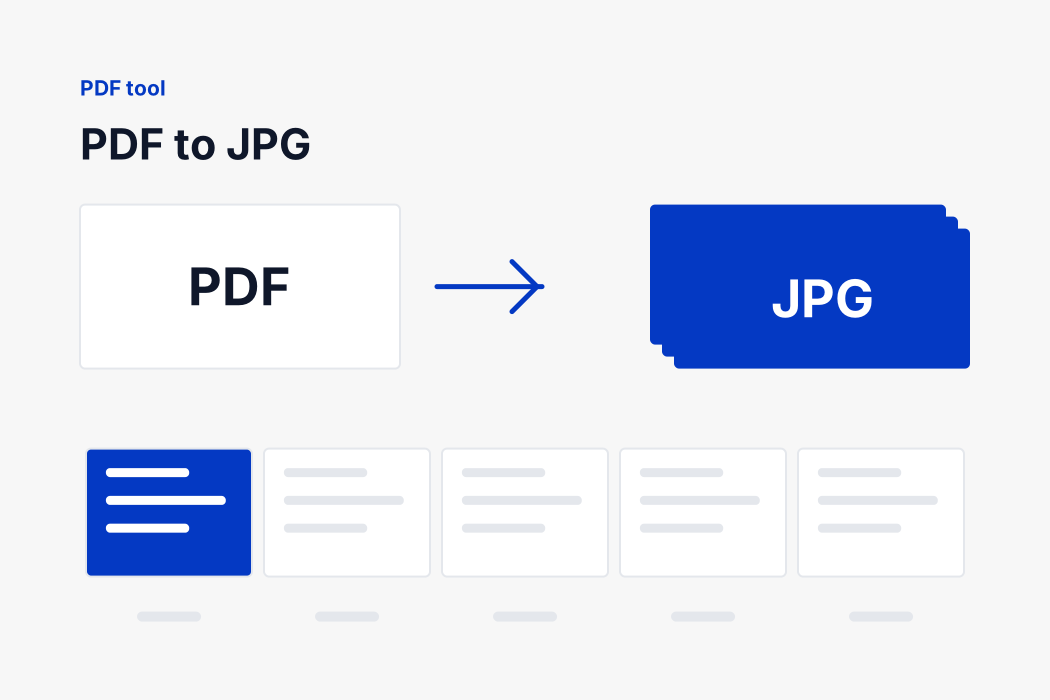
The pages of a PDF being turned into separate JPG images
How it works

Three steps, no upload

Your browser reads the images and writes the document. There is no queue and no waiting.

1

Add your PDF

Drop the document onto the tool or pick it from your device. It is read where it sits.

2

Choose the pages

Set the resolution, and name the pages you want or leave it as all.

3

Download

Each page arrives as its own file. Take them one by one or the whole set as a zip.

How a page becomes a picture

A PDF holds no pixels. It holds instructions: draw this curve, set this font, place these glyphs at these coordinates, fill this region with this colour. That is why a PDF stays sharp at any zoom, and it is why turning one into an image is a rendering job rather than a conversion.

Rendering a PDF properly is genuinely hard. There are fonts to embed and substitute, colour spaces to honour, transparency groups, shading patterns, and twenty five years of files produced by software that followed the specification loosely or not at all. Writing that from scratch is not a weekend, and getting it subtly wrong shows up as a missing character in somebody's contract.

So this page uses pdf.js, the engine Mozilla wrote and Firefox displays every PDF with. It is served from this site rather than fetched from a content network, so the page still makes no request to anybody else, and it runs in a worker thread on your own machine. Each page is drawn onto a canvas at the resolution you chose, painted onto white first because a page is paper, and encoded as JPG.

What resolution gives you

ResolutionAn A4 page becomesWhat it suits
72 DPI595 x 842A thumbnail or a preview. Text is legible only at large sizes.
150 DPI1240 x 1754The default. Text reads comfortably on any screen and the files stay sensible.
300 DPI2480 x 3508Print resolution. Choose it when the image will be printed or has small print in it.
600 DPI4960 x 7016Archival. Four times the pixels of 300 and roughly four times the file size.

The page range takes what you would write by hand. all converts the document. 1-3 takes the first three pages, 7 takes one, 12- takes everything from twelve to the end, and they can be combined with commas: 1-3, 7, 12-. Anything that cannot be read as a range is treated as all, because converting nothing at all would be the worse mistake.

Each page is downloaded on its own, and the button underneath takes the whole set as a zip. The names carry the page number, zero padded, so contract-page-01.jpg sorts before contract-page-10.jpg in any file manager.

Why none of this leaves your device

Think about what people actually turn into PDFs. Passports and visas. Bank statements for a loan application. Degree certificates. Rental agreements with a signature on them. Medical letters. Almost every one of those is a document you would not hand to a stranger.

An online converter that works the ordinary way asks you to do exactly that. Your file goes to a server you know nothing about, in a country you were not told, and is processed and stored for some period described in a policy nobody reads. Most of those services are honest. You have no way of checking which ones.

This page removes the question. The conversion runs in your browser, using the image decoder your browser already has and a PDF writer that is part of the page. No file is transmitted, so there is nothing on our side to store, scan, sell or lose. You can disconnect from the internet after the page loads and it will still work, which is the simplest proof there is.

One thing to be straight about: rendering a PDF uses pdf.js, an open source engine written by Mozilla and the same one Firefox uses. It is not our code. It is served from this site rather than from a content network, so opening this page tells nobody else that you did, and it runs entirely on your machine like everything else here. The file still goes nowhere.

Choosing the resolution

A PDF has no pixels of its own. It describes shapes and text at 72 units to the inch, and the resolution is decided when it is drawn, which is why this page asks.

  • 72 DPI gives an image the same nominal size as the page. Small files, fine for a thumbnail, too soft for text.
  • 150 DPI is the default and the right answer nearly always. Text is comfortably readable and an A4 page comes out about 1240 by 1754.
  • 300 DPI is print resolution. Use it when the image will be printed or when someone has to read small print in it.
  • 600 DPI is for archival or for reading a footnote in a scan. The files get large quickly.

What a JPG cannot carry over

The text stops being text. A JPG is a grid of coloured dots, so nothing in it can be selected, searched or copied, and a screen reader cannot read it. That is the trade, and it is the right trade when the destination only accepts an image. When it is not, keep the PDF.

How this compares with the alternatives

An online converter that uploads

The usual arrangement, and the one worth avoiding here more than anywhere. To convert your document they need your document, which means a contract or a bank statement sitting on a machine you know nothing about, in a country you were not told, for a period described in a policy nobody reads.

Screenshotting each page

Free, already installed, and fine for one page. It falls apart at twenty: the resolution is whatever your screen is, the crop is never quite right twice, and the numbering is yours to keep track of.

Exporting from Acrobat or Preview

Genuinely good, and the right answer if you already have them. Preview on a Mac exports pages as images in a few clicks; Acrobat does it with more control. This page exists for the times you are on a machine that has neither, or a phone.

A command line tool

pdftoppm and ImageMagick will do this faster than any web page and script it over a thousand files. If you are comfortable at a terminal, use them. Most people are not, and should not have to be to get a page out of a PDF.

If something does not look right

The text looks fuzzy

The resolution is too low for what you are asking of it. 72 DPI is a preview; move to 150, or to 300 if the page has small print or will be printed. Rendering higher and shrinking afterwards always beats rendering low.

It says the PDF is password protected

Then it is, and there is nothing to be done from here without the password. Open it in a reader, enter the password, and save an unprotected copy first.

A page came out blank

Some PDFs are built in ways that defeat a renderer, usually very old ones or files produced by unusual software. If a page is blank here it will often be blank in Firefox too, which is the same engine. Opening it in Acrobat and re-saving usually fixes it.

The files are enormous

At 600 DPI an A4 page is around 35 million pixels, and PNG stores every one of them exactly. Drop to 150, or use a lower resolution, and the numbers become ordinary.

A long document is slow

Pages are rendered one at a time on purpose. Doing them all at once would lock up the tab on a phone and run a laptop out of memory on a big file. A hundred page document at 300 DPI takes a while, and it is working the whole time.

I need the text, not a picture

Then this is the wrong page. Every one of these images is a grid of dots, with nothing selectable in it. Keep the PDF, or open it in a reader and copy the text out.

Free, with no account and no watermark

There is no sign-up, no daily limit and no watermark across the corner. There is no paid tier holding back the resolution or the page count, because the work happens on your computer rather than ours and costs us nothing to provide.

The files keep your own name with the page number added: contract.pdf becomes contract-page-01.jpg and so on, zero padded so they sort correctly. A single page document simply becomes contract.jpg.

If you need the images smaller afterwards, our image compressor takes an exact target in kilobytes. And if you want to go the other way, turning pictures back into a document, our image to PDF page does that without uploading anything either.

FAQ

PDF to JPG

The questions people ask most about this conversion.

Drop the file on the tool above. Every page is rendered and offered as its own JPG, and you can take one page, a range you name, or all of them as a zip.

No. The document is opened and rendered by your own browser. Nothing is transmitted, so there is nothing on our side to store or delete.

Yes. Type the pages you want, such as 1-3, 7, 12-, and only those are rendered. Leave it as all for the whole document.

150 DPI unless you know otherwise. Choose 300 if the image will be printed or has small text in it, and 72 only for a thumbnail.

No. A JPG is a picture, so the text becomes part of the image. If you need to select or search the text, keep the PDF.

No. A PDF locked with a password cannot be opened without it, and this page will tell you that rather than fail quietly.

Completely, with no limit on how many images you convert or how large they are. There is no account, no paid tier and no watermark, because the conversion runs on your device and costs us nothing to provide.

No. There is no app, no extension and no plugin. The page you are on is the whole program, and it works the same on Windows, macOS, Android and iPhone.

No. There is no watermark, no logo and no added page, however many images you convert.

Yes, on both iPhone and Android. Pick images straight from your gallery and the PDF is saved to your downloads like any other file.

No. This page makes a PDF out of images. Reading an existing one needs a full PDF renderer, which is a large program we would have to load from somewhere else, and that would break the promise that nothing leaves your device.

Need a different conversion?

Over a hundred free tools, all running in your browser. Nothing is uploaded and nothing is capped.