Resize, compress, or crop
Resize, which is this page
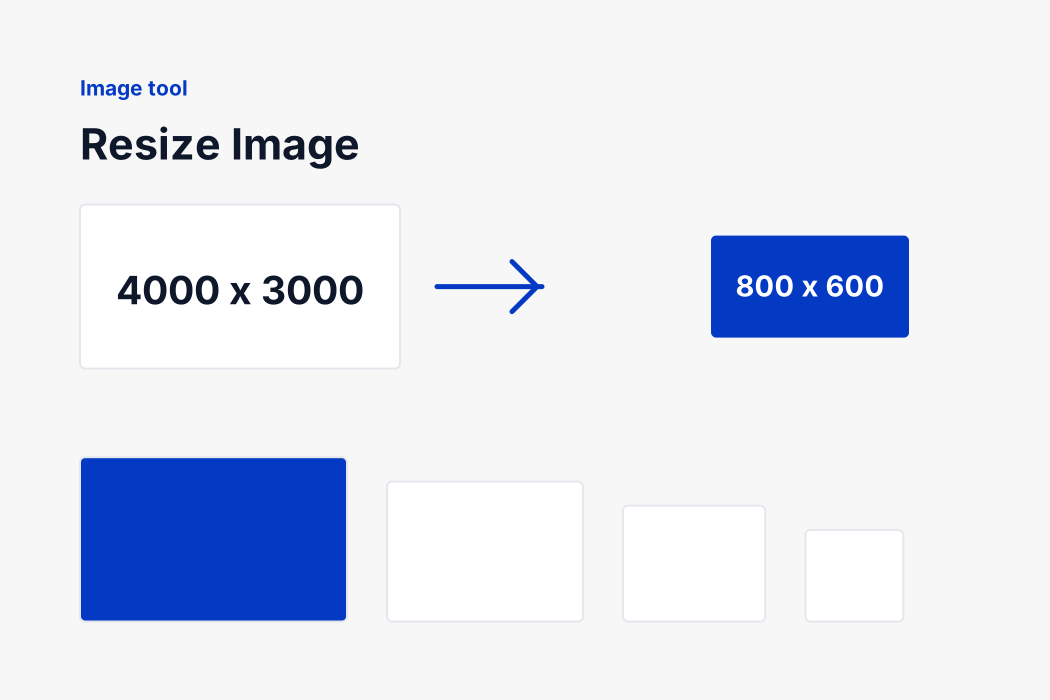
Changes how many pixels there are. Use it when the requirement is in pixels, or when the picture is simply far larger than the place it is going.
Keeps every pixel and stores them with less data. Use it when the requirement is in kilobytes: 20 KB, 50 KB, 200 KB. It hits an exact number, which resizing cannot.
Crop
Cuts part of the picture away, changing what is in it rather than how big it is. That is a different job and not one this page does: nothing here removes any part of your image.
Both together
Common, and the right order is resize first, compress second. A smaller picture needs less compression to reach the same file size, so it comes out looking better than the same target reached by compression alone.
If something does not look right
The result is not the size I asked for
If you chose to fit inside a box, that is the point: the picture is scaled until one side touches and the other has room, so the shape is kept. Turn off "keep the picture's shape" to get the exact box, and accept the stretching that comes with it.
The image looks soft
Either it was enlarged, in which case nothing can be done because the detail was never there, or it was reduced very far in one step. Going from 6000 pixels to 200 loses a great deal by definition.
My transparent background went white
You saved as JPG, which cannot store transparency. Choose PNG or WebP to keep it.
The file got bigger
Possible if you changed format: a photograph saved as PNG is often larger than the same photograph as JPG, however few pixels it has, because PNG stores every one exactly. Keep the original format, or choose JPG.
My iPhone photos will not open
iPhones save as HEIC and only Safari can decode it. On an iPhone or a Mac this page reads them normally; in Chrome on a desktop it cannot. Convert them first with our HEIC to JPG page in Safari.
Nothing happens when I drop a file
Fill in the size first. With an empty width there is nothing to resize to, and the row says so rather than guessing.
Free, with no account and no watermark
No sign-up, no daily limit, no watermark and no cap on how many files or how large they are. The work happens on your computer, so there is nothing for us to charge for.
Each file keeps your own name with the new size added, so holiday.jpg becomes holiday-800x600.jpg, which means a folder of resized images is still sorted and still recognisable. Take them one at a time or the whole set as a zip.
If what you actually needed was a file under a certain number of kilobytes, our image compressor takes an exact target and finds the quality that meets it. And if the format is the problem rather than the size, the image converters handle that.